💾 Storage, Memory & File Systems
RAM, ROM, cache, Flash, NAND SSD, HDD, FAT32 vs NTFS, magnetic tape, registers, memory hierarchy for UPSSSC AGTA.
Memory Hierarchy
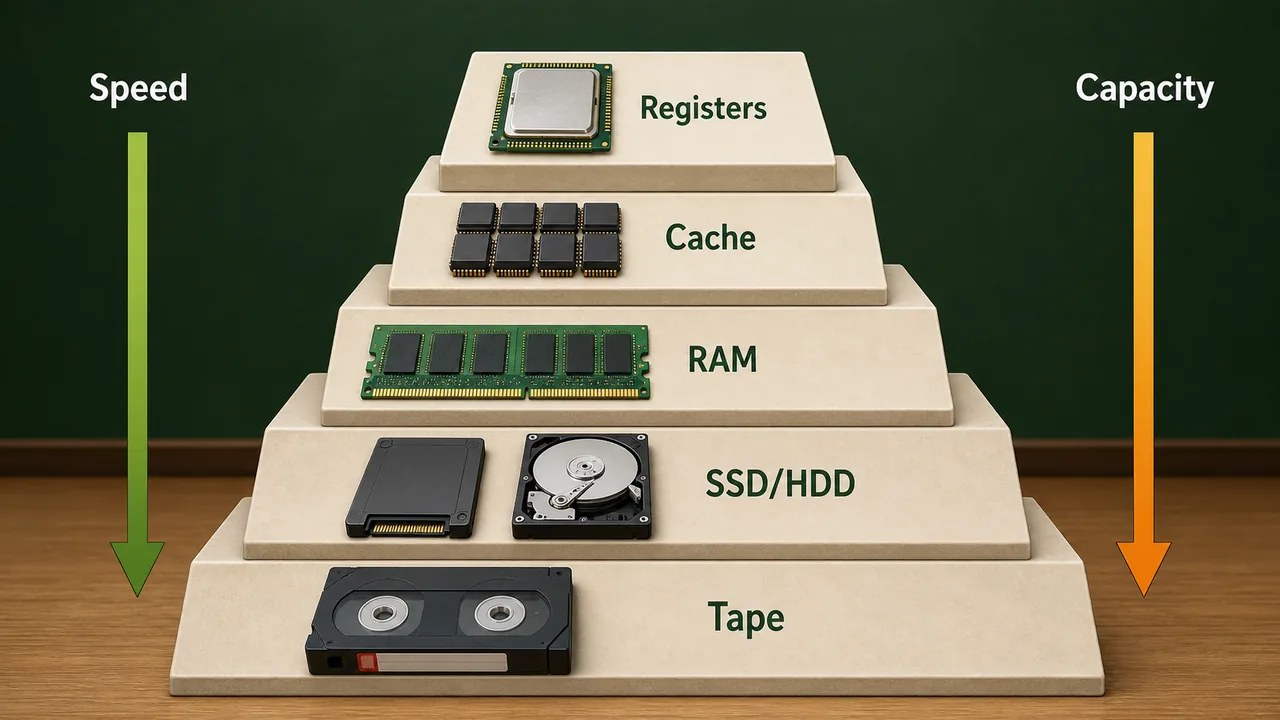
Computer memory is organized in a hierarchy — faster memory is smaller and more expensive, while slower memory is larger and cheaper.
| Level | Memory Type | Speed | Size | Cost |
|---|---|---|---|---|
| 1 (Fastest) | Registers | Fastest | Bytes | Most expensive |
| 2 | Cache (L1, L2, L3) | Very fast | KB–MB | Very expensive |
| 3 | RAM | Fast | GB | Moderate |
| 4 | SSD / HDD | Moderate | TB | Cheaper |
| 5 (Slowest) | Magnetic Tape | Slowest | TB–PB | Cheapest |
Key Rule: As you go DOWN the hierarchy → speed decreases, capacity increases, cost per GB decreases.
Primary Memory (Main Memory)
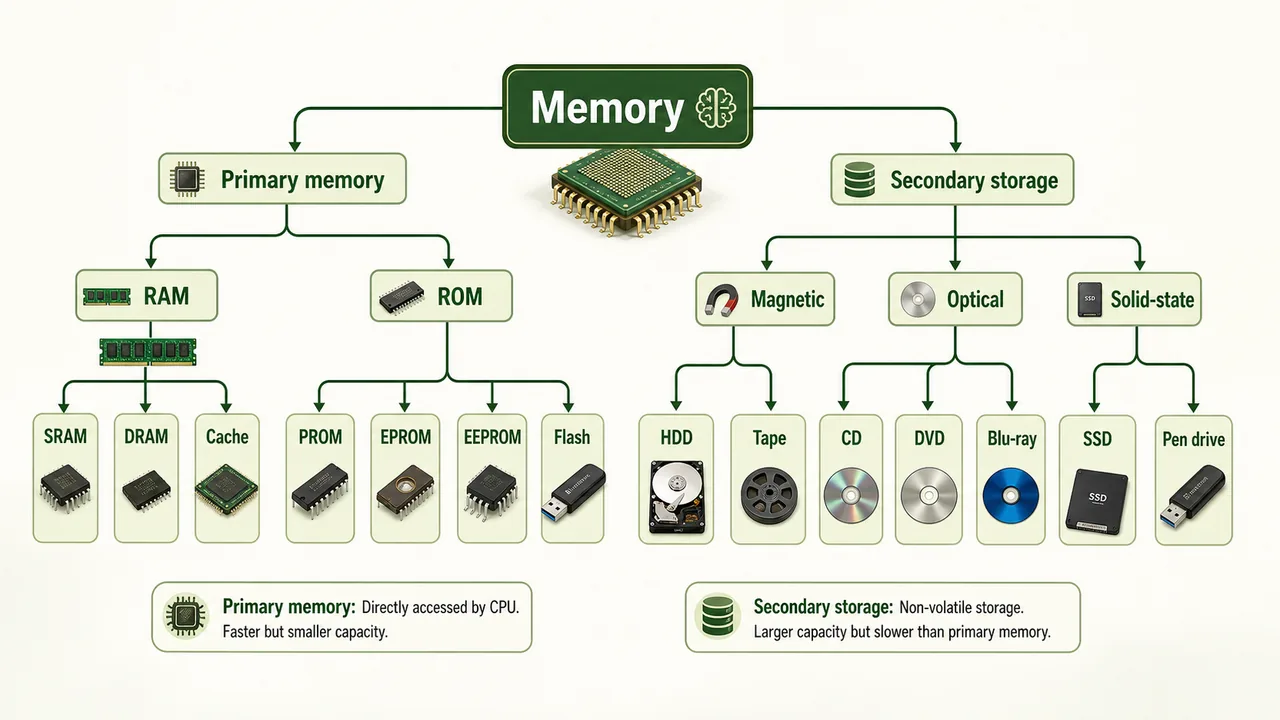
Primary memory is directly accessible by the CPU. It is fast but limited in size.
RAM — Random Access Memory
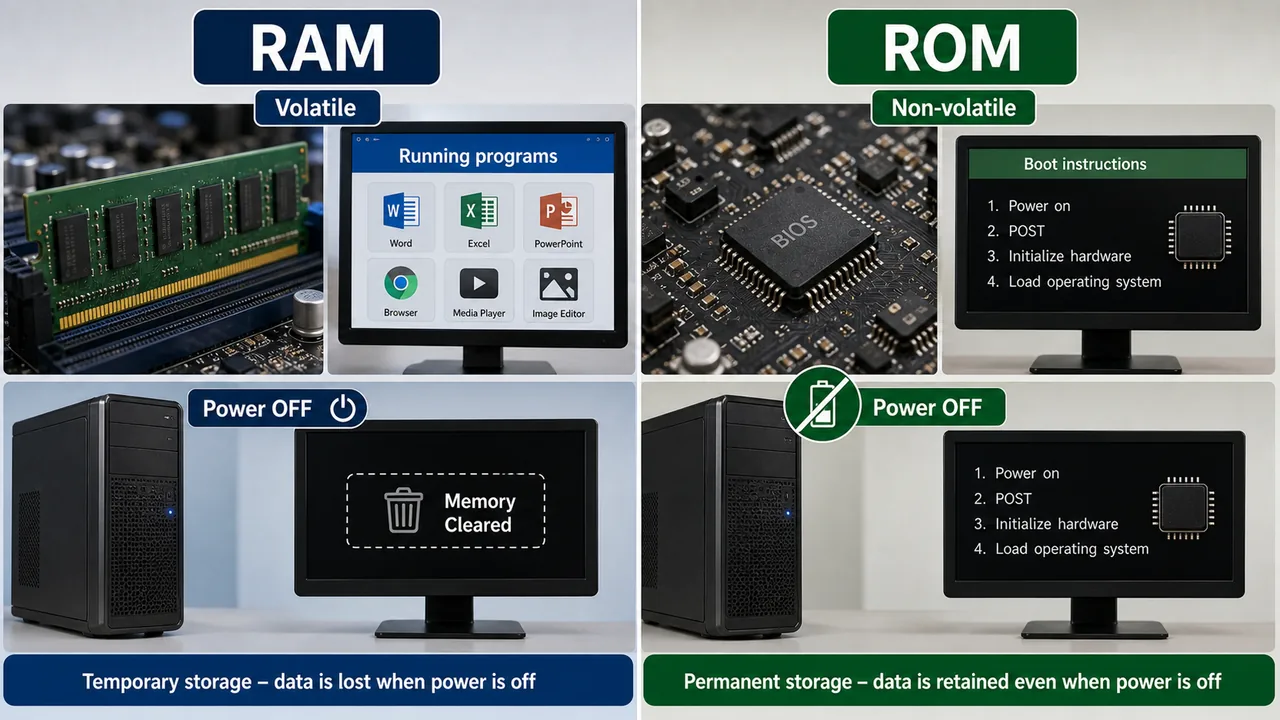
RAM is volatile memory — data is lost when power is turned off. It stores currently running programs and data.
| Type | Full Form | Key Feature |
|---|---|---|
| SRAM | Static RAM | Faster, no refresh needed, used in cache, expensive |
| DRAM | Dynamic RAM | Slower, needs periodic refresh, used as main memory, cheaper |
| DDR | Double Data Rate | Transfers data on both edges of clock signal |
DDR Generations:
| Generation | Speed | Common Use |
|---|---|---|
| DDR3 | Up to 2133 MHz | Older computers |
| DDR4 | Up to 3200 MHz | Current standard |
| DDR5 | Up to 6400+ MHz | Latest, high-performance |
ROM — Read Only Memory
ROM is non-volatile memory — data is retained even when power is off. It stores permanent instructions like the BIOS/boot program.
| Type | Full Form | Feature |
|---|---|---|
| ROM | Read Only Memory | Factory-written, cannot be changed |
| PROM | Programmable ROM | Written once by user, then permanent |
| EPROM | Erasable PROM | Erased using ultraviolet (UV) light, then rewritten |
| EEPROM | Electrically Erasable PROM | Erased electrically, byte by byte — used in BIOS chips |
| Flash Memory | — | Type of EEPROM, erased in blocks — USB drives, SSDs |
RAM vs ROM Comparison
| Feature | RAM | ROM |
|---|---|---|
| Volatility | Volatile (loses data on power off) | Non-volatile (retains data) |
| Purpose | Temporary storage for running programs | Permanent storage for boot instructions |
| Speed | Faster | Slower |
| Size | Larger (4–64 GB typical) | Smaller (few MB) |
| Modifiable | Read and write | Read only (mostly) |
| Example | DDR4 RAM module | BIOS chip on motherboard |
Two older exam-capsule terms also fit here. Semi-volatile memory means memory that behaves like volatile memory for speed, but can retain data briefly or under limited conditions after power is removed. Protected memory means the operating system gives each program its own memory area and prevents one program from freely interfering with another program's memory space, improving reliability and security.
Cache Memory
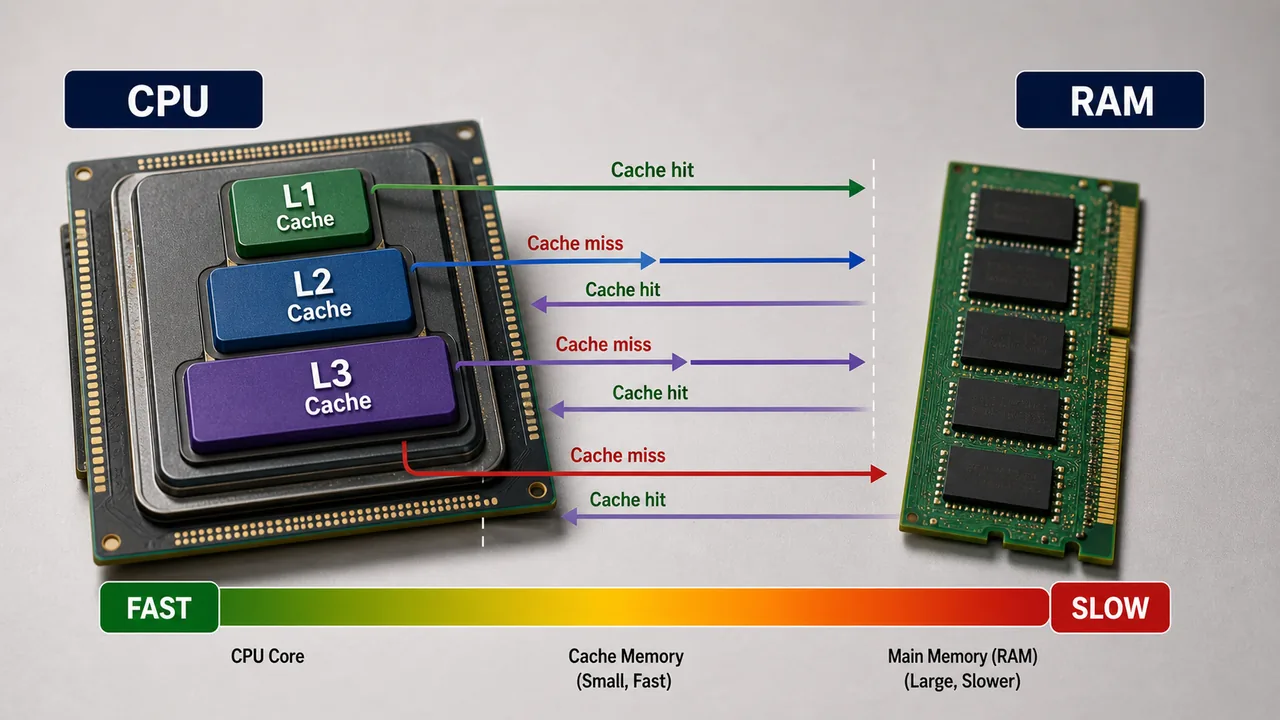
Cache memory is ultra-fast memory placed between the CPU and RAM. Its purpose is to bridge the speed gap between the very fast CPU and the slower RAM.
| Level | Location | Size | Speed |
|---|---|---|---|
| L1 Cache | Inside CPU core | 32–128 KB | Fastest |
| L2 Cache | Inside CPU (per core or shared) | 256 KB–1 MB | Fast |
| L3 Cache | Shared among all cores | 4–64 MB | Moderate |
- CPU first checks L1 → L2 → L3 → RAM (in order)
- Cache Hit = data found in cache (fast)
- Cache Miss = data not in cache, must fetch from RAM (slower)
- SRAM technology is used for cache (no refresh needed)
Registers
Registers are the smallest and fastest memory units, located inside the CPU itself.
| Register | Purpose |
|---|---|
| MAR (Memory Address Register) | Holds the address of memory location being accessed |
| MDR (Memory Data Register) | Holds data being transferred to/from memory |
| Accumulator | Stores intermediate results of ALU calculations |
| Program Counter (PC) | Holds address of the next instruction |
| Instruction Register (IR) | Holds the currently executing instruction |
Secondary Storage
Secondary storage is non-volatile — retains data permanently even without power. It is slower but much larger than primary memory.
HDD — Hard Disk Drive
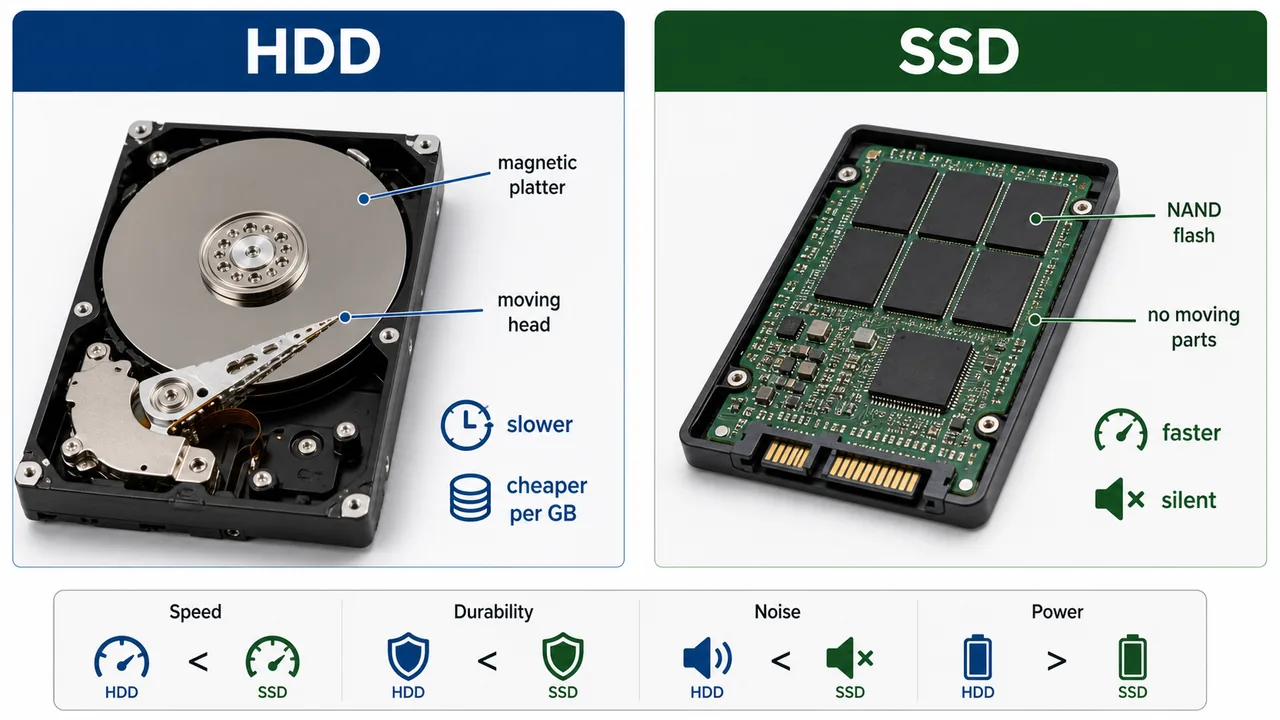
HDD stores data on magnetic spinning platters with a read/write head that moves across the surface.
- Magnetic storage technology
- Moving parts → prone to physical damage
- Capacity: typically 500 GB – 4 TB
- RPM (Revolutions Per Minute): 5400 or 7200 RPM
- Cheaper per GB than SSD
SSD — Solid State Drive
SSD stores data on NAND Flash memory chips — no moving parts.
- Flash-based storage (NAND technology)
- No moving parts → shock-resistant, silent, faster
- Capacity: typically 128 GB – 4 TB
- Much faster boot and load times than HDD
HDD vs SSD Comparison
| Feature | HDD | SSD |
|---|---|---|
| Technology | Magnetic platters | NAND Flash chips |
| Moving Parts | Yes (spinning disk + head) | No moving parts |
| Speed | Slower (80–160 MB/s) | Much faster (500–7000 MB/s) |
| Durability | Fragile (sensitive to drops) | Shock-resistant |
| Noise | Audible spinning noise | Silent |
| Power Usage | Higher | Lower (better for laptops) |
| Cost/GB | Cheaper | More expensive |
| Lifespan | Longer (mechanical wear) | Limited write cycles |
| Boot Time | 30–60 seconds | 10–15 seconds |
Flash Memory
Flash memory is a type of EEPROM that can be erased and rewritten in blocks. It is the technology behind USB drives, SD cards, and SSDs.
| Device | Capacity | Use Case |
|---|---|---|
| USB Flash Drive (Pen Drive) | 4 GB – 256 GB | Portable file transfer |
| SD Card | 2 GB – 1 TB | Cameras, phones, tablets |
| MicroSD | 2 GB – 1 TB | Smartphones, drones |
| CompactFlash | Up to 512 GB | Professional cameras |
- Based on NAND technology
- Non-volatile — retains data without power
- No moving parts — durable and portable
Optical Storage
Optical storage uses laser beams to read and write data on reflective discs.
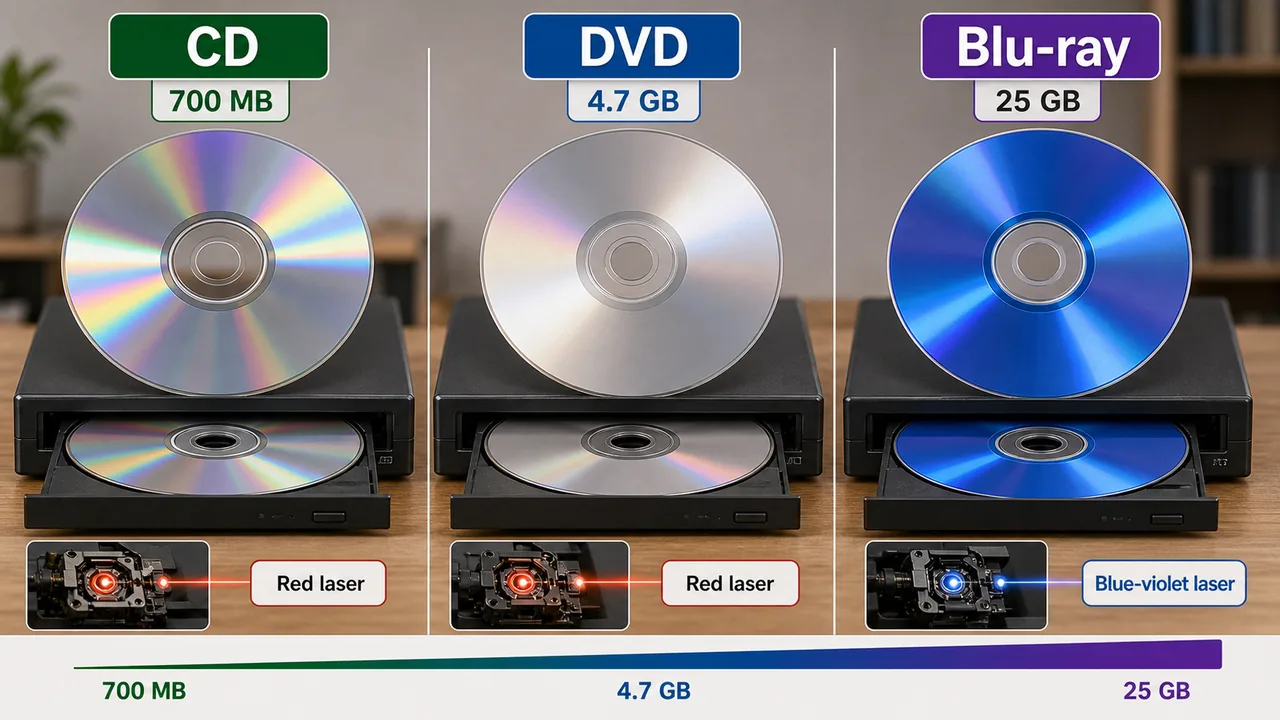
| Type | Full Form | Capacity | Laser Color |
|---|---|---|---|
| CD | Compact Disc | 700 MB | Red (infrared) |
| DVD | Digital Versatile Disc | 4.7 GB (single) / 8.5 GB (dual) | Red |
| Blu-ray | — | 25 GB (single) / 50 GB (dual) | Blue-violet laser |
| HVD | Holographic Versatile Disc | A high-capacity optical format often described around 3-5 TB | Holographic storage concept |
Disc Types:
- ROM (Read Only) — factory pressed, cannot be written (commercial movies, software)
- R (Recordable) — write once (CD-R, DVD-R)
- RW (ReWritable) — can be erased and rewritten (CD-RW, DVD-RW)
Magnetic Tape
Magnetic tape is the oldest and cheapest storage medium, still used for backup and archival storage.
- Sequential access only — must read data in order (like a cassette tape)
- Cannot directly jump to a specific location (unlike HDD/SSD which have random access)
- Very high capacity (up to several terabytes per cartridge)
- Used by large organizations for data backup and disaster recovery
- Extremely low cost per GB
Storage Units
| Unit | Abbreviation | Size |
|---|---|---|
| Bit | b | Smallest unit (0 or 1) |
| Byte | B | 8 bits = 1 Byte |
| Kilobyte | KB | 1024 Bytes |
| Megabyte | MB | 1024 KB |
| Gigabyte | GB | 1024 MB |
| Terabyte | TB | 1024 GB |
| Petabyte | PB | 1024 TB |
| Exabyte | EB | 1024 PB |
The core size relationship is straightforward: 1 Byte = 8 bits, and storage units grow step by step as B, KB, MB, GB, TB, PB, and EB, with each level being 1024 times the previous one.
File Systems
A file system is a method used by the operating system to organize, store, and retrieve files on a storage device.
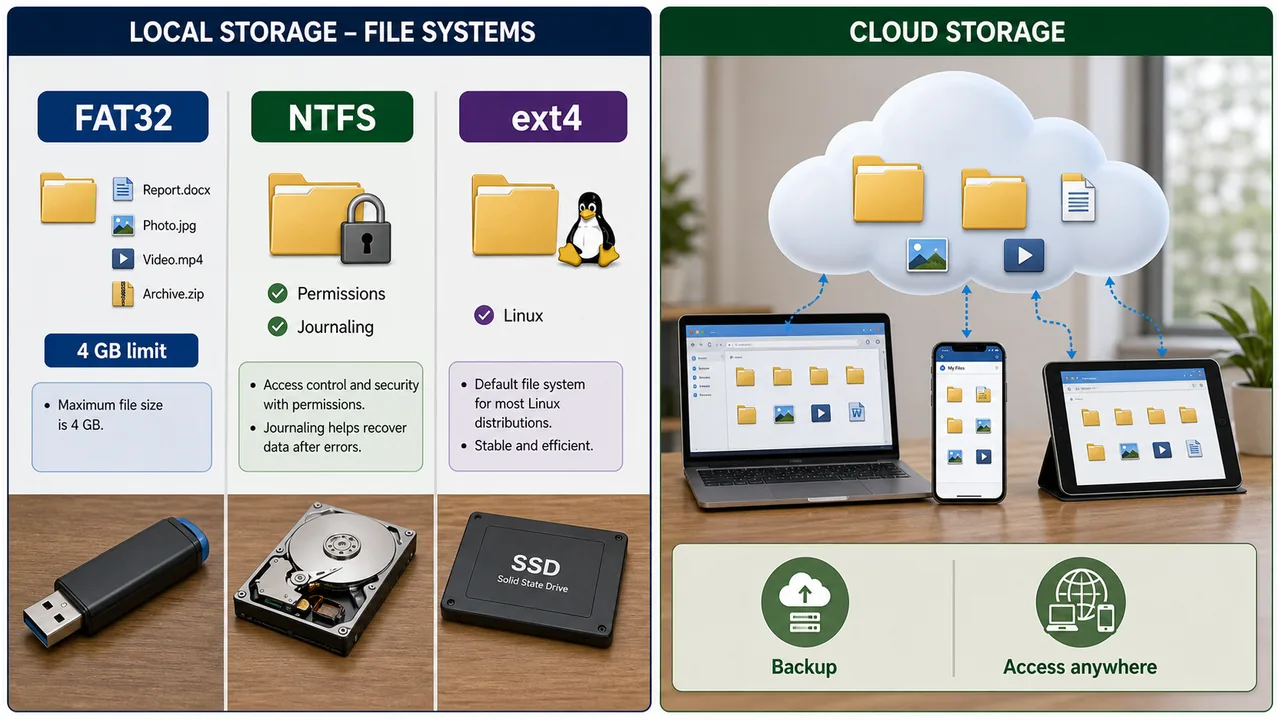
FAT32 vs NTFS vs ext4
| Feature | FAT32 | NTFS | ext4 |
|---|---|---|---|
| Full Form | File Allocation Table 32 | New Technology File System | Fourth Extended File System |
| Developer | Microsoft | Microsoft | Linux community |
| Max File Size | 4 GB | No practical limit (16 TB) | 16 TB |
| Max Volume | 2 TB | 256 TB | 1 EB |
| Security | No file permissions | Full permissions + encryption | Full permissions |
| Journaling | No | Yes (crash recovery) | Yes |
| OS Support | Windows, Mac, Linux, cameras | Windows only (read on Mac/Linux) | Linux only |
| Use Case | USB drives, SD cards | Windows hard drives | Linux systems |
Other File Systems:
- FAT16 — older version, max 2 GB file, used in very old systems
- APFS (Apple File System) — macOS, iOS; optimized for SSD and Flash storage
- exFAT — designed for flash drives, no 4 GB limit like FAT32, cross-platform
The most practical distinction here is that FAT32 cannot store a single file larger than 4 GB, while NTFS supports features such as permissions and encryption.
Cloud Storage
Cloud storage stores data on remote servers accessed via the internet, instead of local hard drives.
| Service | Provider | Free Storage |
|---|---|---|
| Google Drive | 15 GB | |
| OneDrive | Microsoft | 5 GB |
| iCloud | Apple | 5 GB |
| Dropbox | Dropbox Inc. | 2 GB |
Advantages: Access from anywhere, automatic backup, sharing, no physical damage risk Disadvantages: Requires internet, privacy concerns, subscription costs for more storage
Storage Unit Conversion Table
| Unit | Equivalent | Approximate Decimal |
|---|---|---|
| 1 Nibble | 4 bits | — |
| 1 Byte | 8 bits | — |
| 1 KB | 1024 Bytes | ~1 Thousand Bytes |
| 1 MB | 1024 KB | ~1 Million Bytes |
| 1 GB | 1024 MB | ~1 Billion Bytes |
| 1 TB | 1024 GB | ~1 Trillion Bytes |
| 1 PB | 1024 TB | ~1 Quadrillion Bytes |
| 1 EB | 1024 PB | ~1 Quintillion Bytes |
It is useful to connect the units clearly: 1 nibble = 4 bits, 1 byte = 8 bits = 2 nibbles, and 1 terabyte = 1024 GB, which is roughly one trillion bytes in decimal terms.
Another useful term is octet, which is simply another name for an 8-bit byte, especially in networking and standards language.
DDR RAM Generations
| Generation | Data Rate | Voltage | Typical Speed | Year Introduced |
|---|---|---|---|---|
| DDR1 | 200–400 MT/s | 2.5V | 200–400 MHz | 2000 |
| DDR2 | 400–1066 MT/s | 1.8V | 400–800 MHz | 2003 |
| DDR3 | 800–2133 MT/s | 1.5V | Up to 2133 MHz | 2007 |
| DDR4 | 1600–3200 MT/s | 1.2V | Up to 3200 MHz | 2014 |
| DDR5 | 3200–6400+ MT/s | 1.1V | Up to 6400+ MHz | 2020 |
Each DDR generation doubles the data rate, uses lower voltage (more energy efficient), and is physically incompatible with previous slots — DDR4 RAM cannot fit in a DDR3 slot.
SSD Types: SATA vs NVMe
| Feature | SATA SSD | NVMe SSD |
|---|---|---|
| Interface | SATA III (same as HDD) | PCIe (direct to CPU) |
| Speed | Up to 550 MB/s | Up to 3500–7000 MB/s |
| Form Factor | 2.5-inch drive | M.2 stick (small) |
| Performance | 3–5× faster than HDD | 5–7× faster than SATA SSD |
| Price | Moderate | Higher |
| Best For | Budget upgrades | High-performance, gaming, workstations |
NVMe drives connect through PCIe and are much faster than SATA SSDs, although both store data using NAND Flash memory.
RAID — Redundant Array of Independent Disks
RAID combines multiple physical disks into a single logical unit for improved performance, redundancy, or both.
| RAID Level | Method | Feature | Min. Disks |
|---|---|---|---|
| RAID 0 | Striping | Fastest speed, no redundancy — if one disk fails, all data lost | 2 |
| RAID 1 | Mirroring | Data duplicated on two disks — full redundancy, 50% usable space | 2 |
| RAID 5 | Striping + Parity | Good balance of speed and redundancy — can survive 1 disk failure | 3 |
RAID 0 = speed only (risky). RAID 1 = safety only (expensive). RAID 5 = best of both.
Volatile vs Non-Volatile Memory
| Feature | Volatile Memory | Non-Volatile Memory |
|---|---|---|
| Data on Power Off | Lost | Retained |
| Speed | Faster | Slower |
| Cost | More expensive per GB | Cheaper per GB |
| Purpose | Temporary working memory | Permanent storage |
| Examples | RAM (SRAM, DRAM), Cache, Registers | ROM, Flash, SSD, HDD, Optical discs, Magnetic tape |
Access Time Comparison
| Memory Type | Approximate Access Time |
|---|---|
| Register | ~1 nanosecond (ns) |
| Cache (L1) | ~1–5 ns |
| RAM | ~50–100 ns |
| SSD (NVMe) | ~0.05–0.1 ms (50,000–100,000 ns) |
| SSD (SATA) | ~0.1 ms |
| HDD | ~5–10 ms (5,000,000–10,000,000 ns) |
HDD is approximately 100,000× slower than cache memory. This is why cache and RAM are essential for performance.
Blu-ray Disc Capacity
| Type | Capacity |
|---|---|
| Single Layer Blu-ray | 25 GB |
| Dual Layer Blu-ray | 50 GB |
| BD-XL (Triple Layer) | 100 GB |
| BD-XL (Quad Layer) | 128 GB |
Blu-ray uses a blue-violet laser (shorter wavelength = more data on same disc area). A single Blu-ray holds 5× more than a DVD.
Summary Points
| Concept | Key Details |
|---|---|
| RAM | Volatile, temporary storage for running programs |
| ROM | Non-volatile, stores boot instructions (BIOS) |
| SRAM | Static RAM — used in cache, fast, expensive |
| DRAM | Dynamic RAM — used as main memory, needs refresh |
| PROM | Programmable ROM — write once |
| EPROM | Erasable by UV light |
| EEPROM | Erasable electrically |
| Cache | L1 > L2 > L3; bridges CPU-RAM speed gap |
| HDD | Magnetic platters, moving parts, cheap |
| SSD | NAND Flash, no moving parts, fast |
| Flash Memory | USB drives, SD cards — NAND technology |
| CD / DVD / Blu-ray | 700 MB / 4.7 GB / 25 GB |
| Magnetic Tape | Sequential access, cheapest, backup storage |
| 1 Byte | 8 Bits |
| FAT32 | Max 4 GB file size, no permissions |
| NTFS | No file size limit, permissions, journaling |
| ext4 | Linux file system, permissions, journaling |
| APFS | Apple's file system for SSD/Flash |
| Cloud Storage | Google Drive (15 GB), OneDrive (5 GB) |
| DDR1→DDR5 | DDR1 (2.5V) → DDR2 (1.8V) → DDR3 (1.5V) → DDR4 (1.2V) → DDR5 (1.1V) |
| SATA SSD | Up to 550 MB/s, 2.5-inch, SATA III interface |
| NVMe SSD | Up to 3500–7000 MB/s, M.2 form factor, PCIe interface |
| RAID 0 | Striping — fastest, no redundancy, min 2 disks |
| RAID 1 | Mirroring — full redundancy, 50% usable space, min 2 disks |
| RAID 5 | Striping + Parity — balanced speed & redundancy, min 3 disks |
| Volatile | RAM, Cache, Registers — data lost on power off |
| Non-volatile | ROM, Flash, SSD, HDD, Optical, Tape — data retained |
| Access Time | Register ~1 ns → Cache ~1–5 ns → RAM ~50–100 ns → HDD ~5–10 ms |
| Blu-ray | Single 25 GB, Dual 50 GB, blue-violet laser |
| 1 Nibble | 4 bits |
| 1 TB | 1024 GB (~1 trillion bytes) |
Lesson Doubts
Ask questions, get expert answers