📧 Email & Its Protocols
SMTP, IMAP, POP3, MIME, BCC, CC, SPF, MX records, Outlook, email security for UPSSSC AGTA.
What is Email?
Email (Electronic Mail) is the method of sending and receiving digital messages over the internet. It is one of the oldest internet services, predating the World Wide Web itself.
The first network email is commonly associated with Ray Tomlinson, who sent an early email message to himself in 1971 while working on ARPANET systems. This early milestone helps explain how email developed before the modern web.
Email Address Format
Every email address follows the format: [email protected]
| Part | Example | Meaning |
|---|---|---|
| Username | farmer | Your unique identifier |
| @ | @ | "at" — separator symbol |
| Domain | gmail.com | Email service provider |
Example: [email protected] — here "rajesh.kumar" is the username and "gov.in" is the government domain.
Email Protocols — How Email Travels
Email doesn't just magically reach the recipient. It uses specific protocols (rules) at each stage — sending, receiving, and storing.
SMTP — Simple Mail Transfer Protocol
SMTP is the protocol used for sending emails from your device to the mail server and between mail servers.
- Port: 25 (default) or 587 (secure/TLS)
- SMTP only sends — it cannot receive or download emails
- Works like a post office that picks up and delivers your letter
POP3 — Post Office Protocol version 3
POP3 is used to receive/download emails from the mail server to your local device.
- Port: 110 (default) or 995 (secure/SSL)
- Downloads emails and deletes them from the server (by default)
- Emails accessible only on the device where downloaded
- Best for: single-device use with limited internet
IMAP — Internet Message Access Protocol
IMAP is used to receive/access emails while keeping them stored on the server.
- Port: 143 (default) or 993 (secure/SSL)
- Keeps emails on the server — sync across multiple devices
- Changes (read, delete, move) are reflected everywhere
- Best for: accessing email from phone, laptop, and tablet
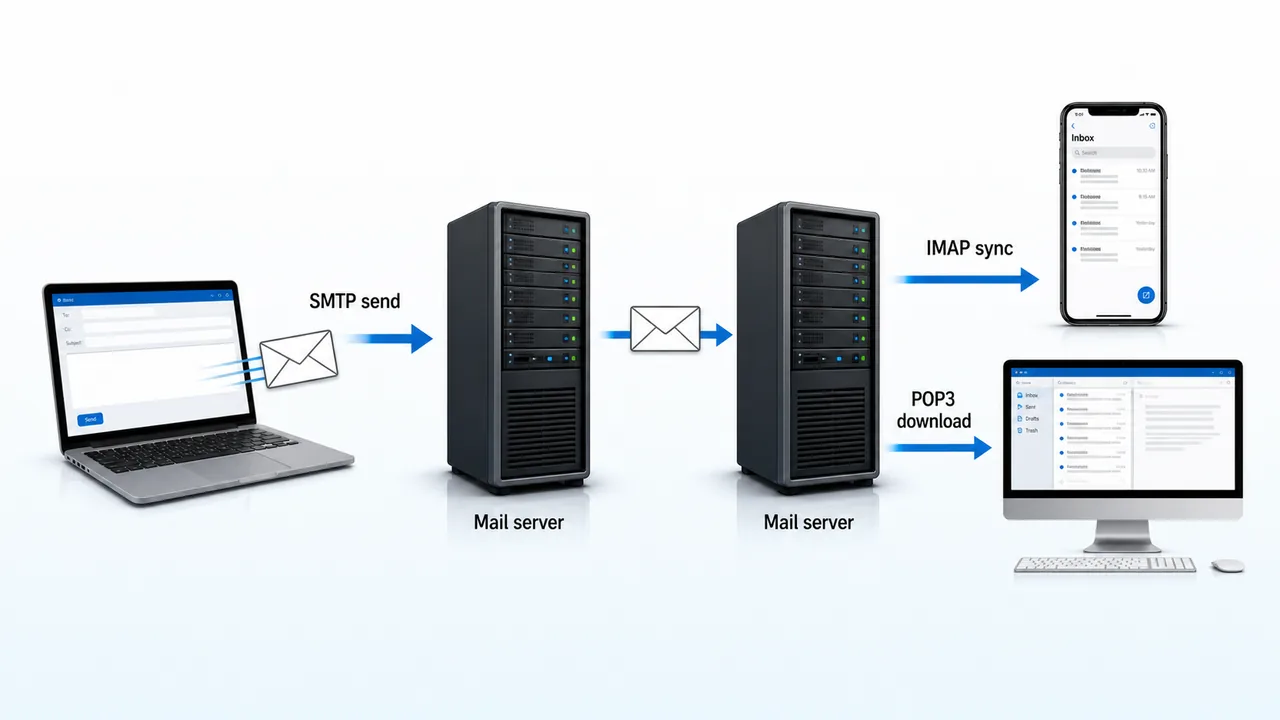
SMTP vs POP3 vs IMAP — Comparison Table
| Feature | SMTP | POP3 | IMAP |
|---|---|---|---|
| Purpose | Sending email | Receiving (download) | Receiving (sync) |
| Port | 25 / 587 | 110 / 995 | 143 / 993 |
| Direction | Outgoing | Incoming | Incoming |
| Server Storage | N/A | Deletes after download | Keeps on server |
| Multi-device | N/A | No (single device) | Yes (all devices sync) |
| Internet needed | Only to send | Only to download | Always for access |
| Offline reading | N/A | Yes (after download) | Limited |
A simple memory hook is that SMTP is for sending mail, POP3 typically picks messages from the server to the device, and IMAP keeps them on the server for synchronized access.
MIME — Multipurpose Internet Mail Extensions
MIME extends the capability of email beyond plain text. Without MIME, you could only send simple ASCII text messages.
MIME allows:
- Attachments — send files (PDF, images, documents)
- HTML emails — formatted text with colors, fonts, images
- Non-ASCII text — support for Hindi, Chinese, Arabic characters
- Multiple parts — text + attachment in one email
| MIME Type | Description | Example |
|---|---|---|
| text/plain | Plain text | Simple email body |
| text/html | HTML formatted | Styled newsletter email |
| image/jpeg | JPEG image | Photo attachment |
| application/pdf | PDF file | Report attachment |
| audio/mpeg | Audio file | MP3 attachment |
Email Fields and Components
| Field | Purpose | Visibility |
|---|---|---|
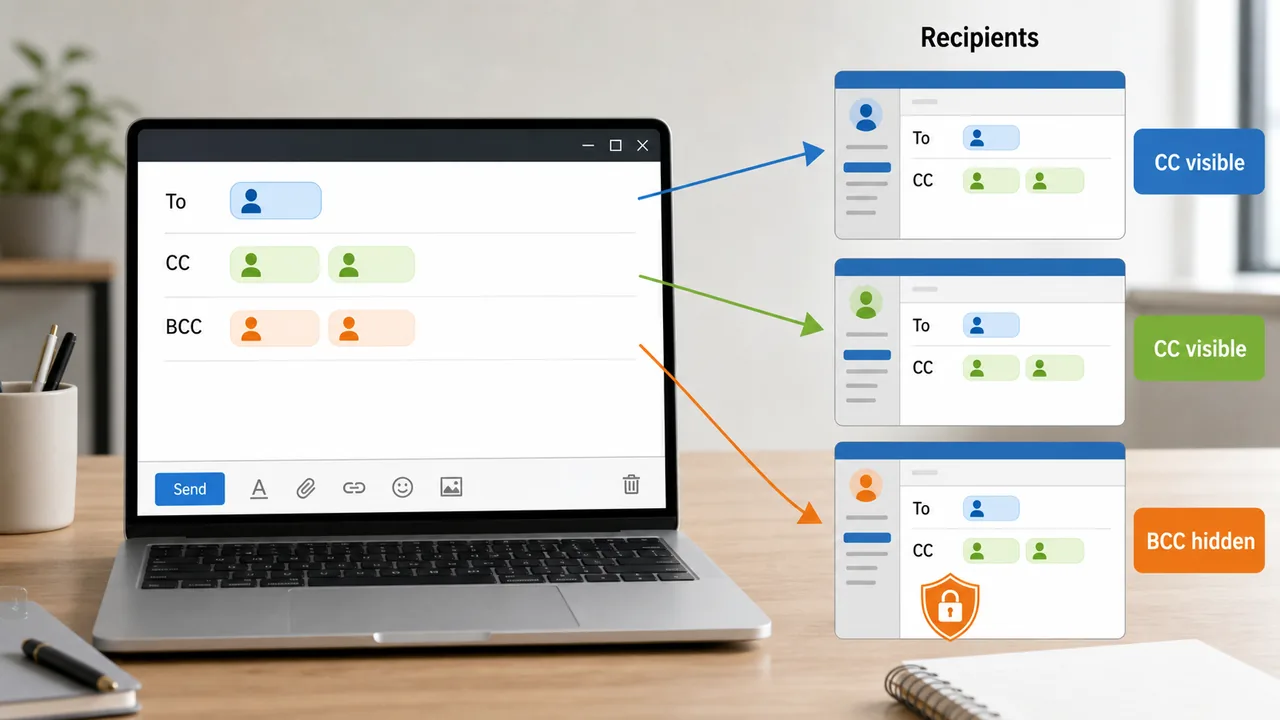
| To | Primary recipient(s) | Visible to all |
| CC (Carbon Copy) | Secondary recipients — for information | Visible to all recipients |
| BCC (Blind Carbon Copy) | Hidden recipients | Hidden — other recipients cannot see |
| Subject | Brief topic of the email | Visible to all |
| Body | Main message content | Visible to all |
| Attachment | Files sent along with email | Visible to all |
| Signature | Auto-added text at bottom (name, designation) | Visible to all |
The important difference is visibility: CC recipients can be seen by everyone in the thread, while BCC recipients remain hidden from other recipients.
Email Clients
An email client is software used to read, write, and manage emails.
Desktop Email Clients
| Client | Developer | Key Feature |
|---|---|---|
| Microsoft Outlook | Microsoft | Calendar, contacts, tasks, rules integration |
| Mozilla Thunderbird | Mozilla | Free, open-source, add-ons |
| Apple Mail | Apple | Built into macOS and iOS |
Web-based Email (Webmail)
| Service | Provider | Access |
|---|---|---|
| Gmail | mail.google.com | |
| Yahoo Mail | Yahoo | mail.yahoo.com |
| Outlook.com | Microsoft | outlook.com |
| Rediffmail | Rediff | mail.rediff.com |
Webmail vs Desktop Client
| Feature | Webmail | Desktop Client |
|---|---|---|
| Access | Any browser, any device | Installed on specific device |
| Internet | Always required | Can read offline (downloaded) |
| Storage | Server-based (cloud) | Local hard disk |
| Setup | Just login — no installation | Install + configure SMTP/IMAP |
| Example | Gmail, Yahoo Mail | Outlook, Thunderbird |
A webmail interface means the email service is being accessed through a web browser instead of a separately installed mail program. So when you open Gmail in Chrome or Yahoo Mail in Edge, you are using a webmail interface.
Microsoft Outlook — Key Features
Microsoft Outlook is the most widely used professional email client and is part of the Microsoft Office suite.
- Email Management — send, receive, organize into folders
- Calendar — schedule meetings, set reminders, share calendars
- Contacts — address book with details (phone, email, organization)
- Tasks — create to-do lists with deadlines
- Rules — auto-sort incoming emails (e.g., move newsletters to a folder)
- Junk Mail Filter — automatically detects and filters spam
- Out of Office (Auto-Reply) — sends automatic replies when you're away
- PST files — Outlook stores data locally in .pst (Personal Storage Table) files
Email Security
SPF — Sender Policy Framework
SPF is a DNS-based email authentication method that specifies which mail servers are authorized to send email on behalf of a domain.
- Prevents email spoofing (sending fake emails pretending to be from your domain)
- Domain owner publishes SPF record in DNS
DKIM — DomainKeys Identified Mail
DKIM adds a digital signature to outgoing emails, allowing the recipient's server to verify the email was not tampered with during transit.
DMARC — Domain-based Message Authentication
DMARC builds on SPF and DKIM — tells receiving servers what to do if authentication fails (reject, quarantine, or allow).
MX Records
MX (Mail Exchange) records are DNS records that specify which mail server should receive email for a domain.
- Example: MX record for agridots.com points to mail.agridots.com
- Without MX records, email cannot be delivered to the domain
| Security Mechanism | Purpose |
|---|---|
| SPF | Verifies sender server is authorized |
| DKIM | Verifies email content is not tampered |
| DMARC | Policy — what to do if SPF/DKIM fails |
| MX Record | Points domain to its mail server |
| SSL/TLS | Encrypts email transmission |
Spam, Phishing & Email Threats
| Threat | Description |
|---|---|
| Spam | Unsolicited bulk emails — usually advertisements |
| Phishing | Fake emails pretending to be from banks/companies to steal passwords |
| Email Spoofing | Forging the sender's address to appear legitimate |
| Malware Attachments | Virus/trojan sent as email attachment |
| Email Bombing | Sending massive number of emails to crash the inbox |
Protection Methods:
- Use spam filters (built into Gmail, Outlook)
- Never click suspicious links or download unknown attachments
- Check sender's actual email address (not just display name)
- Enable two-factor authentication (2FA) on email accounts
Mailing Lists, Forwarding & Auto-Reply
| Feature | Description |
|---|---|
| Mailing List | A group email address that forwards to all members (e.g., [email protected]) |
| Email Forwarding | Automatically redirecting received emails to another address |
| Auto-Reply | Automatic response sent when you receive an email (e.g., "I'm on leave until Monday") |
| Email Signature | Pre-set text added at the bottom of every outgoing email |
| Email Filters/Rules | Auto-sort, label, or move emails based on criteria (sender, subject, keywords) |
Uploading means sending a file or data from your local device to a remote server or online service. When you attach a document in webmail or upload a PDF to cloud storage, the data travels from your computer or phone to the internet service, so that action is called uploading. The opposite process is downloading.
Summary Points
| Concept | Key Details |
|---|---|
| SMTP | Sends email; Port 25/587 |
| POP3 | Downloads & deletes from server; Port 110 |
| IMAP | Syncs, keeps on server; Port 143 |
| MIME | Enables attachments, HTML, non-ASCII in emails |
| CC | Carbon Copy — visible to all recipients |
| BCC | Blind Carbon Copy — hidden from others |
| Outlook | Microsoft email client + calendar + contacts + tasks |
| SPF | DNS record verifying authorized sender servers |
| DKIM | Digital signature for email integrity |
| DMARC | Policy for SPF/DKIM failure handling |
| MX Record | DNS record pointing domain to mail server |
| Spam | Unsolicited bulk email |
| Phishing | Fake email to steal credentials |
| Webmail | Browser-based email (Gmail, Yahoo) |
| PST File | Outlook's local storage format |
| Mailing List | Group address forwarding to all members |
Lesson Doubts
Ask questions, get expert answers