📊 MSEXCEL: Electronic
MSEXCEL: Electronic.
This lesson explains key concepts in a structured way and connects them to practical agricultural applications and exam-oriented understanding.
MSEXCEL: Electronic
MSEXCEL: Electronic Spreadsheets – concepts, packages. Creating, Editing and Saving a spreadsheet with MSEXCEL
Electronic Spreadsheet
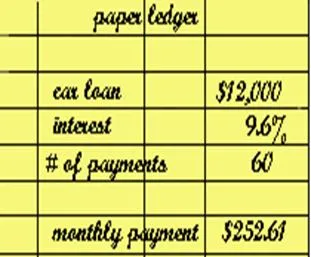
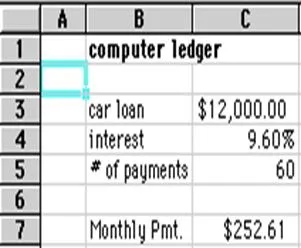
- An electronic spreadsheet is the computer equivalent of a paper ledger sheet. It consists of a grid made from columns and rows.
 |
 |
|---|
- Spreadsheet program allows us to create professional spreadsheets and charts.
- It performs numerous functions and formulas to assist us in our projects.
Electronic Spreadsheet Packages
-
Examples of spreadsheet programs are:
- Lotus 1-2-3
- Corel's QuattroPro
- MS Excel
-
Excel is a spreadsheet program from Microsoft, a component of Microsoft Office for business applications.
| ![Excel_2003[1]](/courses/bsc-agriculture/statistics-computer/stam102-introduction-to-computer-applications/img/lec08_clip_image002.gif) ---|---
---|---
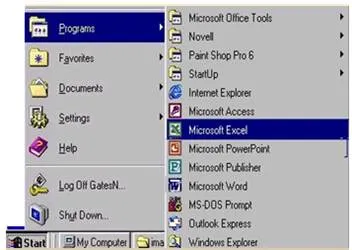
Starting Microsoft Excel __
- Double click on the Microsoft Excel icon on the desktop.
- Click on Start --> Programs --> Microsoft Excel
| __ |  __ __ |
|---|
Concepts
- Spreadsheets are commonly referred to as workbook in Excel.
- Workbooks are made up of
- columns
- rows
- and their intersections are called cells
- A workbook may contain one or more worksheets.
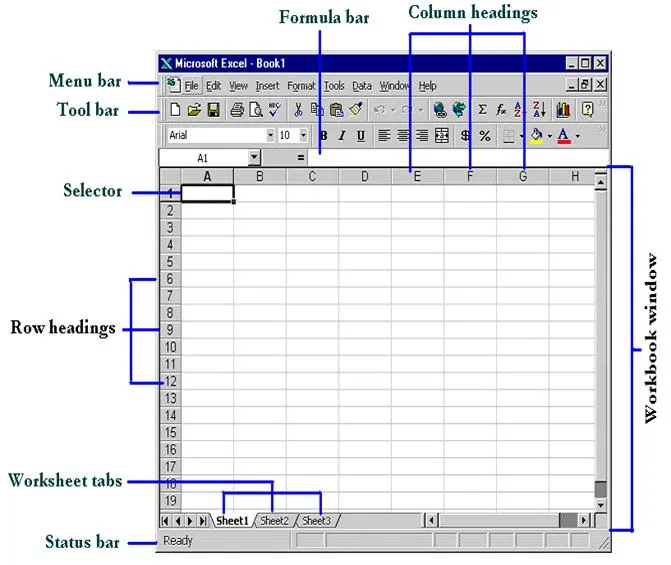
Elements of an Excel Window
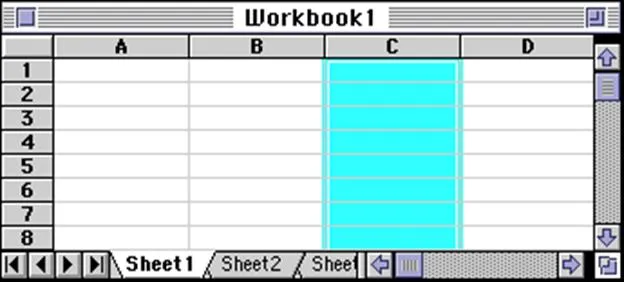
Definition of column in the worksheet
- The column is defined as the vertical space that is going up and down the window. Letters are used to designate each column’s location.
Definition of column in the worksheet
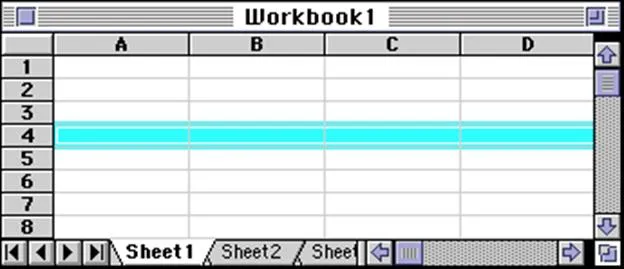
- The row is defined as the horizontal space that is going across the window. Numbers are used to designate each row’s location.
Definition of cell in the worksheet
- The cell is defined as the space where a specified row and column intersect.
- Each cell is assigned a name according to its column letter and row number.
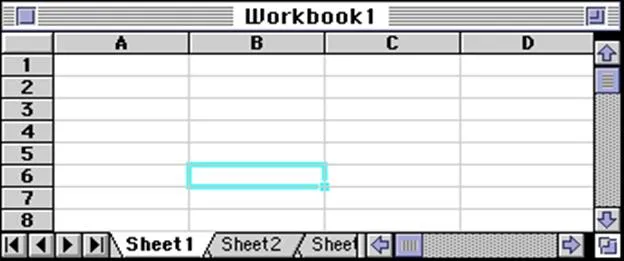
- The selected cell is highlighted.
- The address or the name of the cell selected above is B6.
What a cell can contain?
- A cell may contain any one of the following types of data
- text (labels)
- number data (constants)
- formulas (mathematical equations that do all the work)
Data types | Examples | Descriptions
---|---|--- LABEL | Name or ID or Days | anything that is just text CONSTANT | 5 or 3.75 or -7.4 | any number FORMULA | =5+3 or = 8*5+3 | mathematics equation
Navigating Through Cells
| Movement | Key stroke |
|---|---|
| One cell up | up arrow key |
| One cell down | down arrow key or enter |
| One cell left | left arrow key |
| One cell right | right arrow key or tab |
| Top of the worksheet (cell A1) | Ctrl+Home |
| End of the worksheet (last cell with data) | Ctrl+End |
| End of the row | Ctrl+right arrow key |
| End of the column | CTRL+down arrow key |
__
Selecting Cells
| Cells to select | Mouse action |
|---|---|
| One cell | Click once in the cell |
| Entire row | click the row label |
| Entire column | click the column label |
| Entire worksheet | click Ctrl + A sheet button |
| Cluster of cells | drag mouse over the cells or hold down the SHIFT key while using the arrow keys |
_ _
Creating Spreadsheet
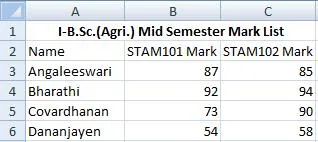
- Move to the cell where you want to enter data and enter words or numbers.
- If data is already in the cell it will be replaced without you having to cut or delete the previous data.
Editing Spreadsheet
- To edit the contents of a cell __
- Select the cell, type the new contents and press enter. The new entry will be replacing the existing contents __
- Or select the cell to be edited, click on the Formula bar or double click the cell then edit the contents and press enter.__
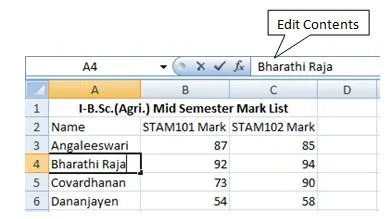
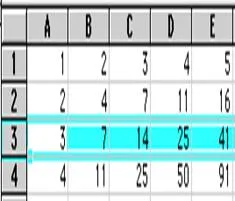
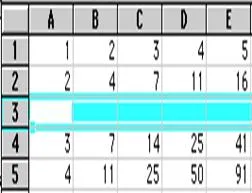
- To insert a row in the spreadsheet
- First click on the row number and choose Rows from the Insert menu. This will insert a row before the selected row.
 |
 |
|---|
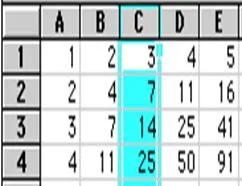
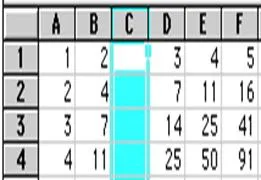
- To insert a column in the spreadsheet
- First click on the column label (letter) and choose Columns from the Insert menu. This will insert a column immediately left of the selected column.
 |
 |
|---|
Saving Spreadsheet
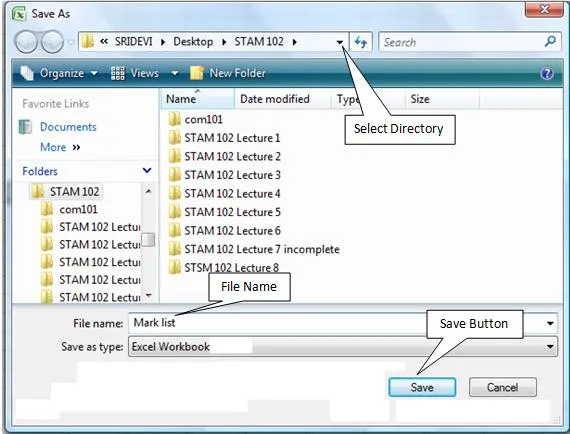
- Click on Save As from File menu.
- In the Save As dialog box
- Select the directory
- Enter the file name
- Click on Save button
- To save subsequently Click on Save from File menu
- Or hold the Ctrl. Key and press Enter key
- Or press Save button (
 ) in the Tool Bar.
---|---
---|---
Summary Cheat Sheet
- Core concepts: revise definitions, components, and workflows from this lesson.
- Exam focus: memorize key terms, differences, and practical application points.
- Practice: apply the topic steps once in a real or simulated computer task.
References
2 sources • [1] [2]
References
[1]
Course Notes
[2]
AgriDots Lesson Source
Lesson Doubts
Ask questions, get expert answers